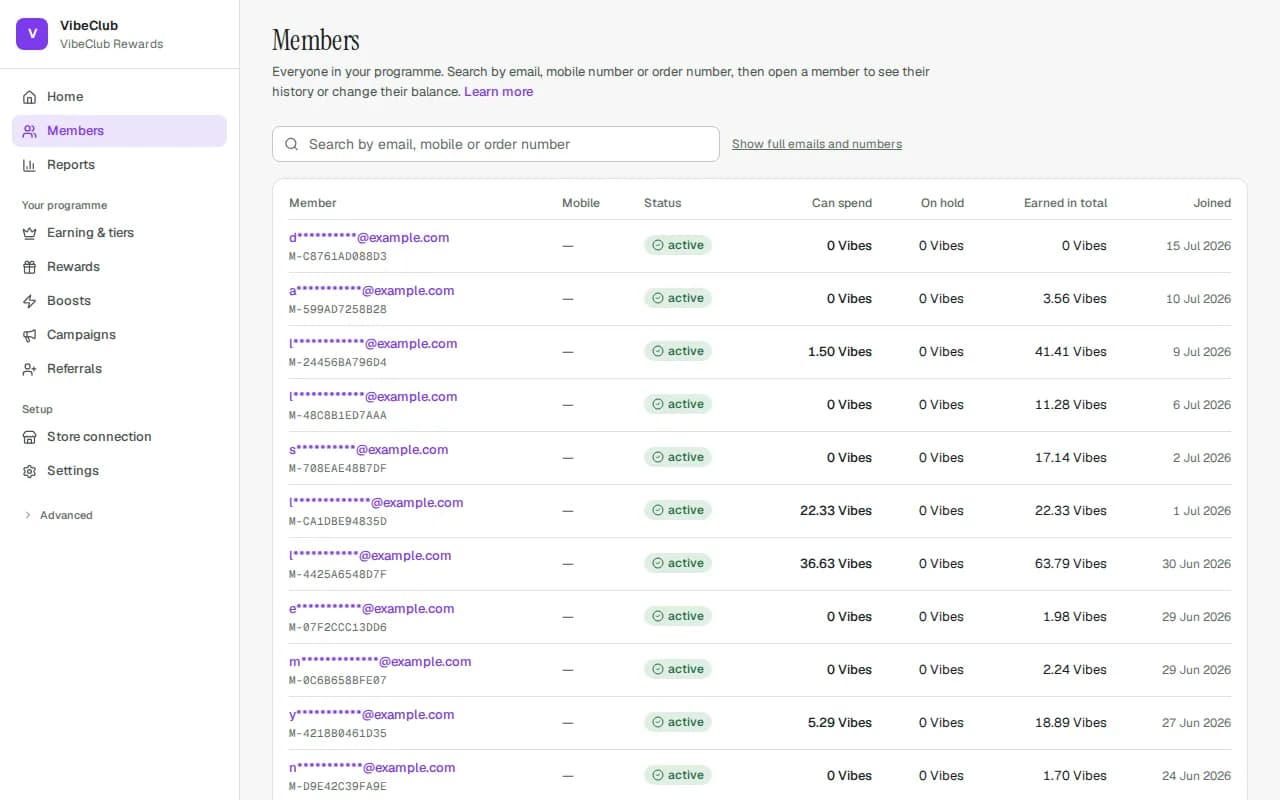
Identity: the email + mobile pair
One member per email and one per mobile number, per programme. Email anchors the account; a mobile added later upgrades the same account in place. Search members by email, mobile, member ID or order number.
Guests earn before they join
A checkout email is enough: guests accumulate held earnings that become theirs the moment they sign up with that email — through the portal or the API. Nothing is lost between first purchase and signup; buying activity even counts toward tier standing.
What members see
Signed-in members get an app-style rewards page in your colours. Four tabs sit along the bottom on a phone (along the top on a computer):
- Card — a greeting, their membership card, quick actions (redeem, store credit, refer, show card), how close they are to the next reward and the next tier, and their latest activity.
- Rewards — your rewards as tiles. Tapping one shows the price and what they will have left; after redeeming they see the code with Copy and Shop with this code. When you offer store credit, it has its own tab with a slider. Codes they have not used yet stay listed underneath.
- Activity — everything that happened to their balance, by month, filterable to Earned or Spent. Each line names the order or reward; notes such as "on the way" or "taken back" appear only when they apply.
- Refer — their code, a Share your link button, how it works, and the friends they brought (first name and initial only).
Their account (the round initials button) holds email preferences, marketing consent, birthday, Download my data, your rules and Sign out.
Your brand colour is used on the card, the main buttons and progress bars; everything else stays neutral so the card stands out. Light and dark follow your Settings → Branding choice.
Visitors who are not signed in land on your join page (on plans with the landing page designer you can design it under Settings → Landing page): the card they are about to get, your headline, and one panel to join — Continue with your store account when the store is connected, or a sign-in link by email. On a computer the Card screen sits in two columns, the card on the left.
Joining by email waits for the link. Nobody becomes a member, accepts your terms or earns a referral reward until they open the link we email them and press Confirm and join, so a mistyped or made-up address never creates an account. The form answers every address the same way and never reveals who is already a member. It refuses new sign-ups — the person is told by email — while your programme isn't open (terms and privacy text not yet published) or your plan has reached its member limit. The same check runs again when the link is opened: if you unpublish your terms or privacy text, or the plan fills up, after the email went out, the link shows Sign-ups are closed and nobody is enrolled; it works again if you reopen within its 15 minutes. Each programme also accepts up to 300 new sign-up requests an hour. Beyond that, further requests that hour are turned away and our team is alerted. Existing members can always sign in.
The membership card
When a member signs in to your rewards page, the first thing they see is their membership card: your logo and programme name, their tier, their balance, their name, their member ID and a scannable code.
- One look per tier, from your brand. Your lowest tier gets a soft tint of your brand colour, middle tiers your brand colour, and your top tier your darker secondary colour (with gold lettering when it is dark enough). You do not design anything; change your colours under Settings → Branding and every card follows, always readable.
- The member's name comes from their Shopify customer record when your store shares names with StickyTier; otherwise the card shows the start of their email.
- The member ID is printed in three groups (
M-DAE0 · A9B9 · C0CC) so it is easy to read out on a call. Type it into Members search in any form — with or without the dots and spaces — and it opens that member. - The scannable code is the member ID itself — members tap the card (or Show card) to turn it over to a large code for the till. Scan it with any scanner — or your phone's camera — and type or paste the result into Members search to open that member.
- Your logos on the card. Under Settings → Branding you can upload two logos: your Logo (shown at the top of the rewards page and in emails) and a Square logo (icon) — just your symbol — used on the card, in your dashboard and as the app icon members add to their home screen. Without a square logo, the main one is used.
- Logo link — also under Settings → Branding: where your logo takes a signed-in member, for example back to your store. Leave it blank to keep them on the rewards page.
Names
A member's name comes from their Shopify customer (first and last name), once Shopify has approved StickyTier to receive names. It is never guessed from an email address, a customer who blanks their name in Shopify keeps the last one we had until they set a new one, and erasing a member's data erases the name too. Members without one are shown by email.
Duplicates & merging
On the Members page, open Tools and press Scan for duplicates. It flags accounts whose emails collapse to the same alias (dots, +tags, gmail.com and googlemail.com) or that share phone digits. Merge these two (with an optional Merge reason) moves everything to the older account:
- Balance — spendable and pending value alike. Each reward keeps its own expiry date and its release date, so nothing expires earlier or becomes spendable sooner than it would have.
- Orders — so tier standing unifies. If one of the duplicate's orders is later refunded or cancelled, the reward is taken back from the merged account.
- Vouchers, referrals, consent history and open recovery cases. A referral between the two accounts is the same person referring themselves, so it is rejected.
- Tier — the higher of the two, then re-checked against the combined orders.
- Shopify customer, your own customer id and mobile — when the older account has none of its own.
The duplicate is retired and points to the account it was merged into. Its email, mobile and Shopify customer still work: orders, sign-ins and API calls that use them land on the merged account, and any value that comes back to the old account later (for example a cancelled voucher) moves across automatically. A merge is refused while the duplicate has a checkout in progress — try again in about 15 minutes. If an order is being processed for either member at that moment, nothing changes and you are asked to try again in a minute. Not a duplicate is remembered — the pair is never flagged again.
Account states
A member starts as a prospect (a shopper who has ordered but not joined), becomes registered when they join and active once they sign in. You can Pause member from their page: a paused member can still sign in and see their history but can't earn or spend until you Un-pause member. Suspended members cannot earn, redeem or sign in — on any surface, rewards page or API — and their orders still record as plain revenue. Erasing a member (Delete personal data on their page, DELETE /v1/members/{id}, or Shopify's redaction request) erases them: direct identifiers are removed, and their email and mobile are also removed from every stored copy we hold — order webhooks, API events and deliveries, the activity log and the points history — and their orders, points history, balance, redemptions and referral links are deleted; any unspent balance leaves your liability as written off.
Shoppers who never join. We erase a prospect's details automatically after 365 days of inactivity (no order, referral, referral-link click or sign-in link, and no points credited). If they hold unclaimed points and your programme's points expire, we also wait until those points have expired. In every case they are erased after 730 days of inactivity. Points a prospect never claimed lapse when the details are erased, leave your outstanding liability, and nobody can claim them afterwards.
Privacy in the member's hands
The member's Your account screen (formerly the Privacy page) holds the marketing-consent switch — off unless they opt in (sign-in links and other essential messages always arrive) — the Points & tier updates switch for notification emails (also reachable from the unsubscribe link in every notification — see Member email), their optional Your birthday, and Download my data — a self-service JSON file of their profile, history, orders and the rewards they used. Changes and exports are audited. To have their data deleted, a member asks you (your support email is on the same screen); you delete it with Delete personal data on their member page.